
Trading Monero
About this page1 migration check
- Original wiki wording
- rev 3453 · 26 Nov 2023
- 1 migration check
- Checked 7 Nov 2026
- Automated source comparison, not reviewed by a maintainer
Show checks
Added during migration, not part of the original. Each check identifies a specific difference or review need; none is a review of the whole procedure.
Monero auto-confirm defaults changed Checked against pinned source
The pinned Bisq 1 v1.10.11 AutoConfirmSettings defaults XMR auto-confirm to disabled, with a 0.125 BTC auto-confirm ceiling and five required confirmations; the minimum configurable confirmations is two. These differ from the source's enabled/1 BTC description. Existing saved preferences can differ from defaults. An auto-confirm failure alone is not proof that the XMR payment failed.
Checked 7 Nov 2026
Monero (XMR) is one of the most active markets on Bisq. This article covers some things you should know when trading it.
Instant payment accounts
Section titled “Instant payment accounts”By default, all altcoins trades on Bisq have trade periods of 1 day. But you can set up an Altcoins Instant account on Bisq for 1-hour trade periods.
Proving payments
Section titled “Proving payments”Some details of XMR transactions are not publicly available on the blockchain. In order for a mediator or arbitrator to handle disputes, the XMR seller must make sure they send XMR using a wallet that provides the following 3 items to prove the payment was made:
- transaction key (Tx Key, Tx Secret Key, or Tx Private Key)
- transaction ID (Tx ID or Tx Hash)
- recipient's address
This information can be found in the following wallets: official Monero GUI and CLI wallets, MyMonero, Exodus (desktop), Cake Wallet, and Monerujo (mobile):
- Monero GUI: on the Transactions tab.
- Monero CLI: use the command
get_tx_key <TXID>. The flagstore-tx-infomust be enabled (it's enabled by default in new versions). - Other wallets: go to transaction history and look for transaction key (sometimes called "tx key" or "secret key") and destination address in a sent transaction. For Cake Wallet, the "Save recipient address" option must be enabled in settings.
If you are using another wallet not mentioned above, be sure you can still access the 3 items mentioned above.
Since transaction keys and destination addresses are stored in Monero wallet software and not available anywhere else, be careful not to delete or restore your Monero wallet before a Bisq trade is complete.
Failure to provide the required transaction data will result in losing disputes.
Verifying payments
Section titled “Verifying payments”To verify that a certain sum of Monero was sent to a specific address:
- Monero GUI: change wallet to Advanced mode and go to
Advanced>Prove/check>Check Transaction - Monero CLI: use the command
check_tx_key <TXID> <TXKEY ADDRESS>
- Monero.com explorer - working checked 17.10.23
- P2pool explorer - working checked 17.10.23
- XMR Chain - working checked 17.10.23
- Explore Monero website - working checked 26.11.23
- XMR Check Transaction tool - not working checked 17.10.23
If you still have questions, see this guide on the Monero home page or ask a question on the Monero support subreddit.
Auto-confirming trades
Section titled “Auto-confirming trades”Auto-confirming trades verify receipt of XMR payment automatically. Typically, XMR buyers must check their wallet and manually mark a payment as received in Bisq. Auto-confirming trades do this automatically, making trades quicker and more efficient for both traders.
This feature is currently available for XMR trades where:
- the XMR seller provides a valid transaction key or viewkey
- the XMR buyer has auto-confirming trades turned on in Bisq settings
Auto confirming works very well most of the time. However on some occasions users might be manually required to confirm payment, for example then the incorrect data is supplied by the BTC buyer.
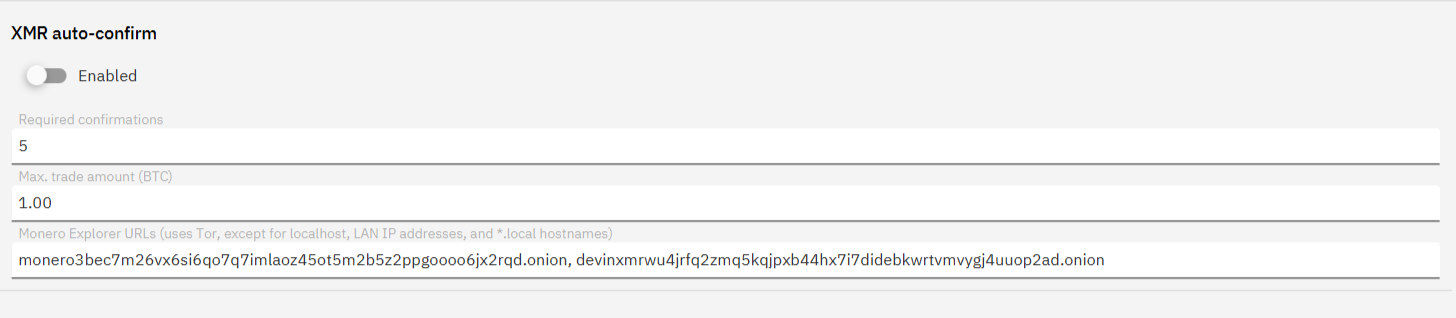
By default auto-confirming trades is turned on in the Bisq app, if you wist to turn if off it can be done in Settings > Preferences:
Historical full-size recovered source. Provenance catalogue.
How it works
Section titled “How it works”XMR Seller
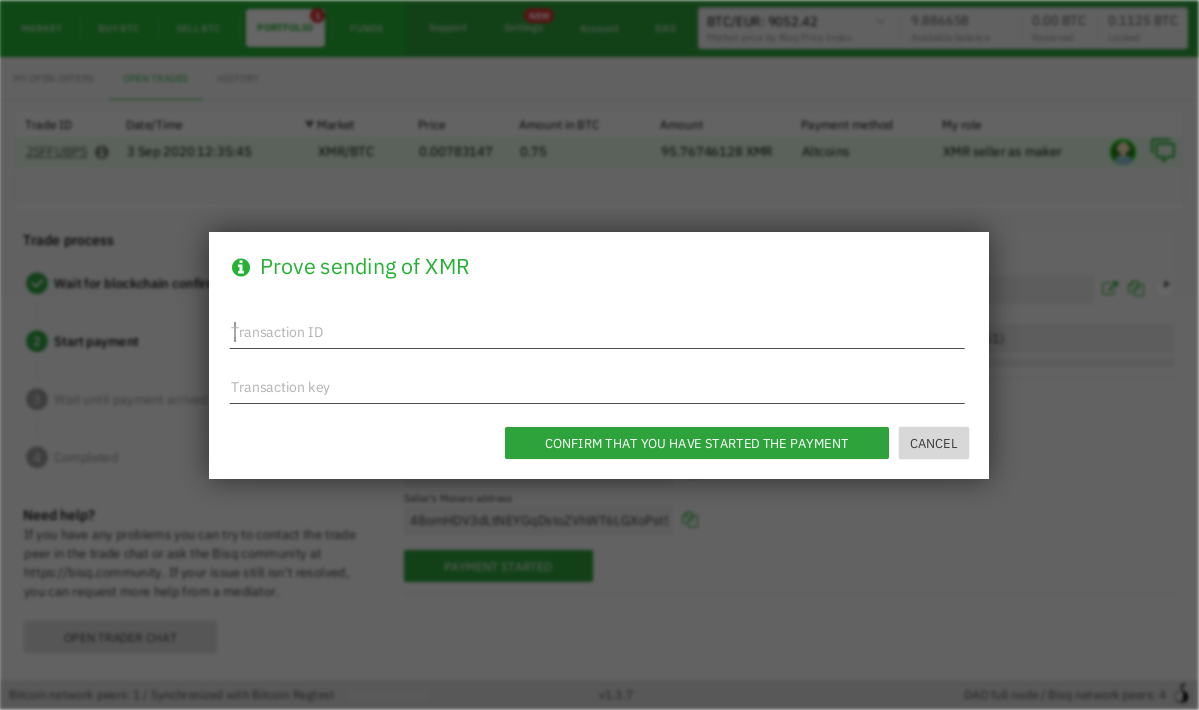
Section titled “XMR Seller”The XMR seller will get a pop-up upon clicking Payment Sent asking for the XMR tx ID and XMR tx key.
Historical full-size recovered source. Provenance catalogue.
The trader can choose to enter this information, or not. It is not mandatory. If the trader chooses not to, they'll be informed that their trading peer will not be able to use auto-confirm.
XMR Buyer
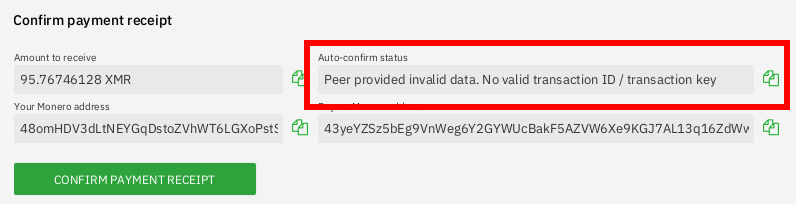
Section titled “XMR Buyer”The XMR buyer must have auto-confirm turned on in Bisq settings.
Historical full-size recovered source. Provenance catalogue.
Explorer nodes are queried every 90 seconds for 12 hours. If 12 hours pass without success, auto-confirm fails for the trade. If Bisq receives just 1 failure of any kind (related to transaction, network issues, etc), auto-confirm is considered failed. This does not mean the XMR transaction was invalid. It just means the user should check the transaction manually.
The user can mark the transaction as received any time by clicking Confirm Payment Receipt themselves, and auto-confirm will stop running for that trade and the trade will be completed normally.
Settings
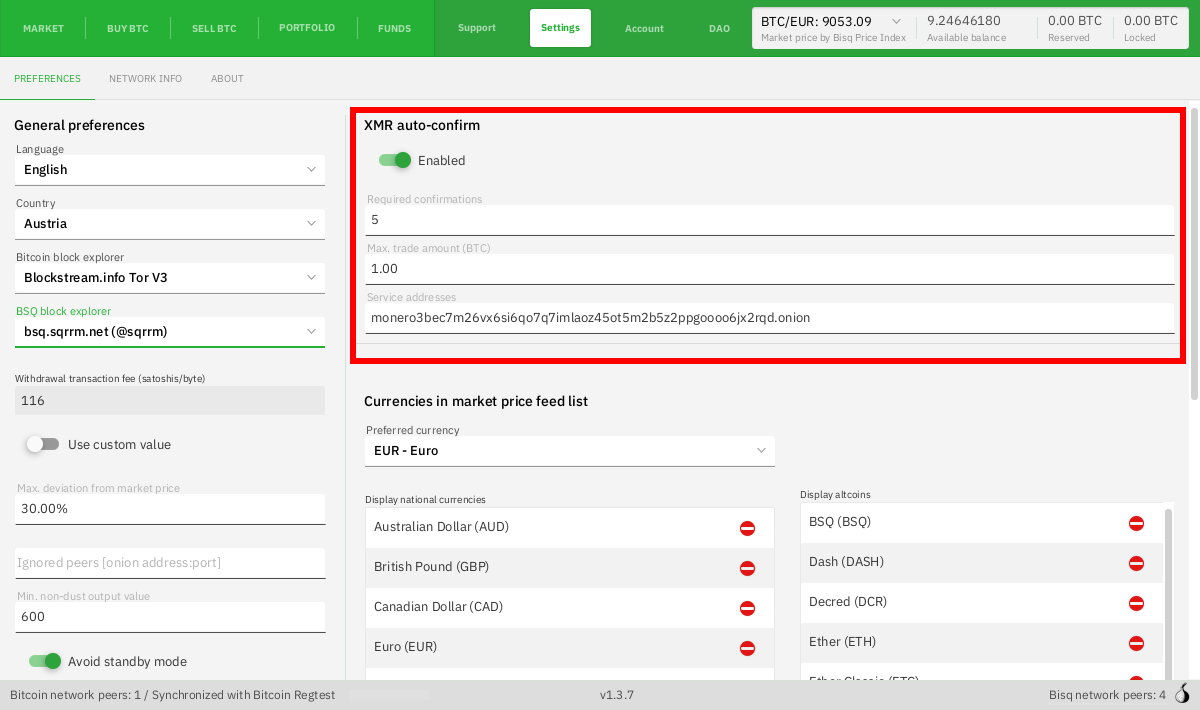
Section titled “Settings”On the Bisq settings screen, you can set:
- Maximum amount of BTC that can be confirmed per trade (default: 1 BTC)
- Monero Explorer node address (default: nodes run by Bisq contributors; see below for how to run your own)
- Number of required confirmations (default: 5)
Please note that changes to these settings are applied immediately only for trades for which payment hasn't been started yet. Restart Bisq for updated settings to apply to all trades.
Changing the required number of confirmations is an exception: it takes effect immediately for all trades.
Disabling the auto-confirm feature altogether also takes effect immediately. But re-enabling the feature will only take effect on trades for which payment hasn't been started yet; restart Bisq for the auto-update feature to apply to all trades.
Historical full-size recovered source. Provenance catalogue.
Monero Explorer nodes
Section titled “Monero Explorer nodes”By default, the Bisq auto-confirm feature relies on a few Monero Explorers operated by Bisq contributors, but we highly recommend you to run your own Monero Explorer node at home. Don't trust, verify!
Set up your own node
Section titled “Set up your own node”For maximum privacy and security, users are recommended to run their own Monero Explorer node for verifying receipt of funds.
- Build Monero from source. Check out this guide for further guidance. Ubuntu (18.04 in particular) tends to work better than plain Debian.
- Build the Monero explorer from source.
- Run
monerod. - Once the Monero blockchain is synced, run the explorer with
xmrblocks --enable-json-api. - Specify your explorer's address on the Bisq settings screen.
Source and history
This article keeps its recovered wording, headings, step order and available images. Formatting and links are adapted for this site. The snapshot does not guarantee that every instruction is current.
- Original page
- Trading Monero
- Revision
- 3453 · 26 Nov 2023
- Last recorded editor
- Darawhelan (not a complete author list)
- Snapshot
- 18 October 2026
- Source files
- Original wikitext · Revision metadata
- Image references
- 4 recovered, 0 missing · Media catalogue
- Recovery gaps
- 0 restored historical template occurrences · 0 unresolved templates · 0 unresolved article links · 0 unresolved sections